 Seller OS
Fiverr login from a new location: checklist
Signing in to Fiverr from a place your account has never seen is normal when you travel, move, or change networks. It can also look unusual to an automated check, which is why a new location sometimes asks for extra proof before letting you in.
This checklist covers what tends to trigger a verification or review, how to prepare before the login so the check passes quickly, and what to do if the account is flagged. Fiverr's verification steps live in the Help Center; the preparation habits are general security practice.
Free plan available. Local-first data. Human review on every change.
Why a new location draws a check
Account checks look for a login that does not fit the pattern a user has built, and a sudden change of country or network is one such signal. That signal is not an accusation; it is the same idea as a bank asking a question when a card is used far from home. A quick confirmation usually clears it.
The reasons a location changes are ordinary: a flight, a move, a work trip, a new internet provider, or a mobile network that routes differently. Fiverr describes the verification it may request in the Fiverr Help Center, and the exact step depends on the account and the situation, so read the prompt rather than trusting a forum shortcut.
Prepare before the login
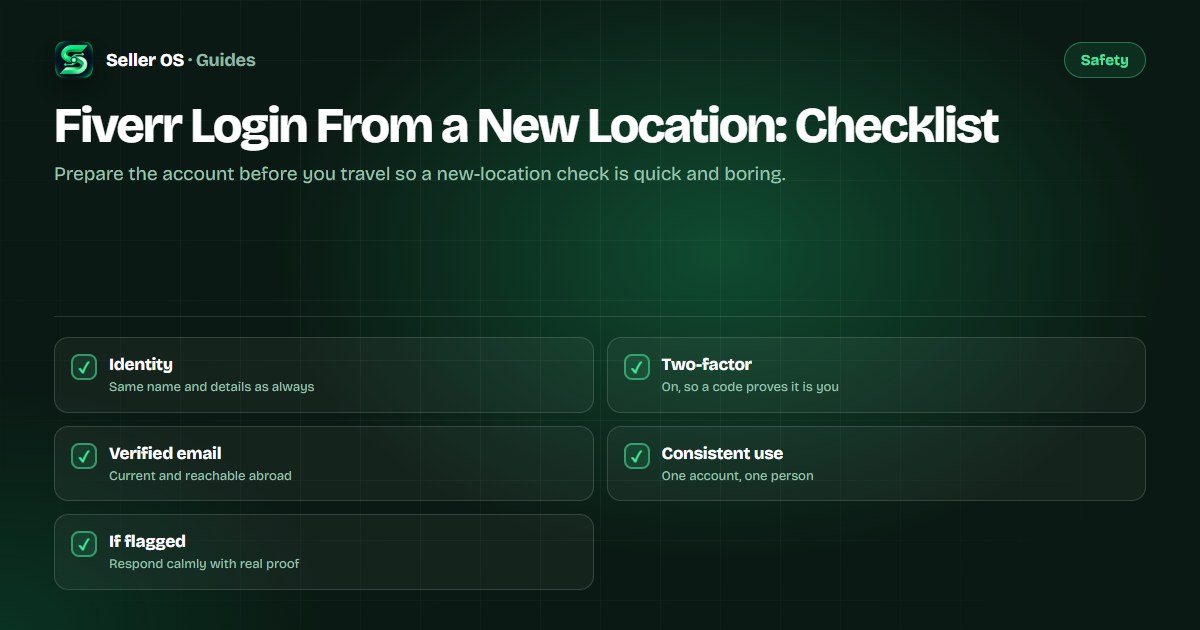
The best time to get ready is before you leave, while the account is still in a familiar place and every setting is easy to reach. Confirm that two-factor authentication is on, that the registered email is one you can open while away, and that your profile details still match your real identity.
Keep the account consistent. A name, photo, and description that match across your email, payment method, and Fiverr profile gives a reviewer less to question. If you plan to use a tool that changes your apparent location, understand that a mismatch is exactly the kind of signal the check is looking for, which is why the VPN guide treats it as a general risk rather than a trick.
What a check usually looks like
Depending on the signal, the platform may ask for a code from your email or authenticator app, a confirmation of your phone number, or an identity document. These are the same verification steps the Help Center describes, and they are meant to be finished in one sitting. Have the requested item ready before you start so the session does not time out.
Some situations move the account into a review state rather than a single prompt. A review is slower and usually asks for patience rather than more input; the account under review guide maps that state. A failed verification attempt is covered by the verification failed guide.
| Situation | Likely response | What to do |
|---|---|---|
| New country login | A code or a prompt | Complete it from the same device |
| Unusual network | A confirmation step | Finish it; do not retry in a loop |
| Details mismatch | A closer review | Make the records consistent |
| Repeated attempts | A hold or review | Stop and wait, then contact support |
If the account is flagged
Read the message before reacting. It usually states what is needed, whether that is a verification step or simply time while a review completes. Do not create a second account or reset everything in a panic; that adds new signals and makes the story harder to verify.
If the message asks for a document or a confirmation, provide it exactly as requested and once. If the account is locked while it is reviewed, use the support route from your registered email so the request matches the account. The email support guide shows how to phrase that request.
Habits that reduce false flags
Most of the work is consistency: one account used by one person, kept up to date, with a working recovery path. Log in from the same trusted devices where you can, keep the browser and operating system current, and avoid stacking location changes on top of each other, such as a new country plus a brand-new device on the same day.
None of this is a guarantee, and no setting removes every check. The point is to lower the odds that a legitimate login looks strange and to make the check fast when it comes. Treat the account the way you would treat a bank login rather than a casual sign-in.
- Keep one account, owned and used by one person.
- Leave two-factor on so a code can prove it is you.
- Keep the registered email reachable while you travel.
- Match your profile details to your real identity.
- Avoid stacking several location or device changes at once.
Where Seller OS helps
Seller OS keeps client notes, order context, and drafts in Chrome local storage, so the working history stays with you whether you are at your desk or on a trip. It does not move that data to a remote service.
It also does not sign in to your Fiverr account or manage verification for you; the login and any check belong to Fiverr and to you. The extension works on pages you approve and waits for your click before saving or sending anything.
Fiverr Login From a New Location questions
Why did Fiverr ask me to verify when I logged in from a new location?
A new country or network can look different from your usual pattern, so the platform may ask for a quick confirmation before letting you in. That is the same kind of check a bank runs on an unusual card charge. Completing the requested step from the same device usually clears it.
Should I use a VPN to log in to Fiverr while traveling?
A VPN changes your apparent location, which is the very signal a location check reacts to, so it can create the problem it seems to solve. If you use one, choose a reputable provider and expect that a mismatch may still prompt a check. Treat VPN behavior as general security practice, not platform policy.
How do I prepare my Fiverr account for travel?
Before you leave, confirm two-factor is enabled, make sure your registered email is one you can open abroad, and check that your profile details still match your real identity. Keep one account used by one person, and log in from the same trusted devices where you can.
What if my Fiverr account is flagged after a new-location login?
Read the message and give exactly what it asks for, once. Do not open a second account or reset settings in a panic, because that adds new signals. If the account is locked during a review, contact support from your registered email so the request matches the account.
Prepare, then log in quietly
Turn on two-factor, keep your email reachable, and finish any check from the same device.