 Seller OS
Secure your Fiverr account: 2FA and sessions
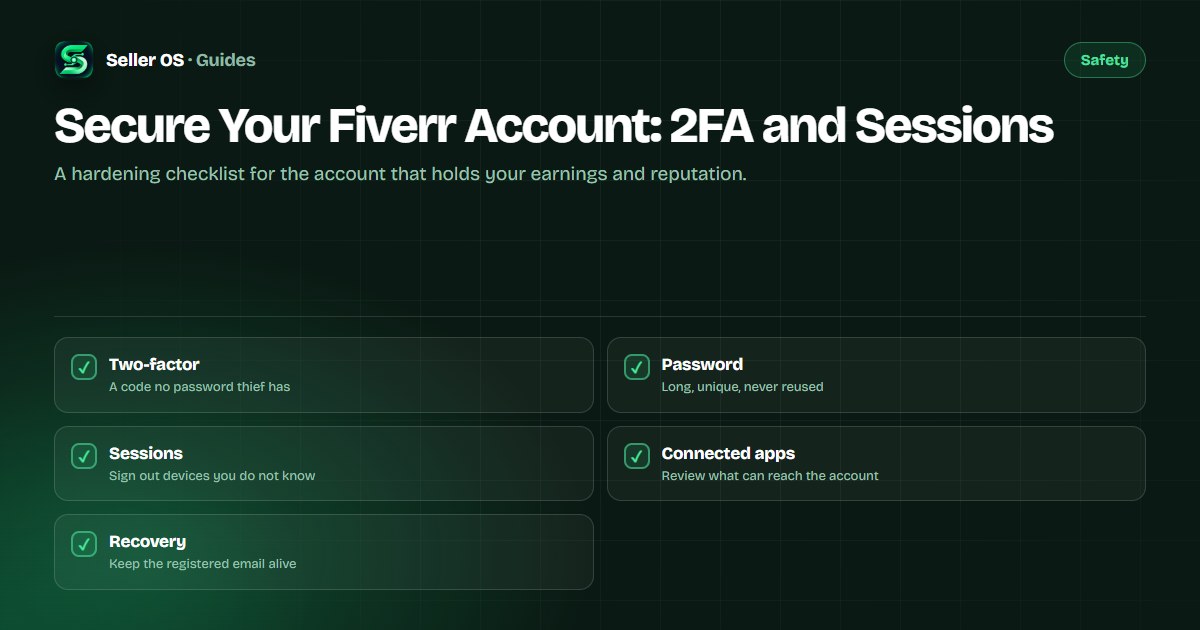
Your Fiverr account holds your earnings, your order history, and the reputation you have built. Losing it to a reused password or a stolen session costs far more than the few minutes it takes to lock it down. The strongest protections are switches you can turn on today.
This guide is a hardening checklist: two-factor authentication, password habits, session review, and a look at what already has access. Fiverr's own settings live in your account security page in the Help Center, and the habits around them are general security practice that applies to every account you run.
Free plan available. Local-first data. Human review on every change.
Why the account is worth hardening
Every seller account is a small business with a bank attached. It holds pending and cleared earnings, a payout method, buyer conversations, and a review history that took months or years to build. That combination is exactly what a thief wants, and the cheapest attack is a password you reused somewhere else that leaked in an unrelated breach.
Fiverr publishes its account-security guidance in the Fiverr Help Center, and the settings it describes are the same few switches covered here. The habits around them, such as unique passwords and checking sessions, are general security practice rather than platform policy, so treat both layers as your responsibility.
Turn on two-factor authentication first
Two-factor authentication adds a second proof beyond your password, usually a code from an app or a message. Fiverr describes how to enable it in its account settings guidance, and it is the single change that most reduces the damage of a leaked password, because a stolen password alone stops being enough.
Choose an authenticator app over SMS where you can, and store the backup codes somewhere offline. Do not share a code with anyone, including someone who messages you claiming to be Fiverr staff; a genuine platform never needs your one-time code. The phishing guide covers the messages that try to extract exactly this.
Open account security settings
the two-factor section lists the methods Fiverr offers
Pick an authenticator app
prefer it over SMS when both are available
Scan and confirm
add the account, then test a generated code
Save backup codes
print or store them offline, away from the phone
Recheck in a day
confirm the setting still shows as enabled
Password and login hygiene
Use a password manager so every account gets a long, random, unique password. The one that matters most is your email, because whoever controls it can reset almost everything else. A password you have typed into a spreadsheet, a chat, or another site is no longer private.
Keep the registered email address current, since it is both the recovery route and the address Fiverr uses to reach you. If you change providers, update it before you need it. Never enter your Fiverr credentials on a page you reached from a link in a message.
Review sessions and connected access
Fiverr shows active sessions and connected services in the account settings, so open them on a regular schedule. If you see a device, browser, or location you do not recognize, sign it out, then change your password from a device you trust, which ends the old session.
Do the same pass over any third-party app or tool you connected. Ask what it can read, whether you still use it, and how to revoke it. The browser extension guide applies the same review to the tools sitting in your toolbar.
| Check | What good looks like | If it is wrong |
|---|---|---|
| Active sessions | Only devices you recognize | Sign out, then change the password |
| Two-factor | Enabled with an app and saved codes | Turn it on again and re-save codes |
| Registered email | Current, reachable, and yours | Update it in account settings |
| Connected apps | Only tools you still use | Revoke access you no longer need |
| Password | Long, unique, not reused anywhere | Replace it and every duplicate use |
What to do when something looks wrong
If you notice an unfamiliar login, a failed password, changed payout details, or orders you did not take, act in order rather than at random. Securing the account comes before explaining it. Start by changing the password from a clean device, which ends existing sessions, then re-enable two-factor if it was switched off.
Report what happened through the support channels the Help Center lists, and use your registered email so the request can be matched to the account. If the account is locked out entirely, the email support guide covers the fallback. Bank details changed by someone else is the one case worth a fast, calm escalation.
Change the password
from a device you trust, so old sessions are cut off
Re-secure two-factor
confirm it is on and your codes still work
Review sessions and apps
sign out anything unfamiliar
Check payouts and orders
note anything you did not authorize
Report through support
from your registered email, with dates and evidence
Mistakes that undo the work
The most common self-inflicted problem is reusing the email password across sites, which turns any unrelated breach into an account takeover here. The second is sharing a one-time code to be helpful. The third is ignoring an unfamiliar-session warning because nothing broke yet.
Locking the account down is a one-time effort with a small recurring habit attached. Turn the switches on, review the doors every few months, and keep the recovery path alive, so a bad week does not become a lost business.
- Reused passwords turn unrelated breaches into account takeovers.
- A shared one-time code defeats two-factor entirely.
- A stale registered email can lock you out of your own recovery.
- Unreviewed sessions and apps are doors left open on purpose.
Where Seller OS helps
Seller OS keeps the working parts of your business local to the browser. Client records, drafts, and notes sit in Chrome local storage instead of a remote service, so there is less to expose when you tighten account security.
It does not manage your Fiverr password, two-factor, or sessions, and it never signs in on your behalf; those belong to your Fiverr account settings. What it does is operate on pages you approve and wait for your click before anything is saved or sent.
Secure Your Fiverr Account questions
Does Fiverr offer two-factor authentication?
Yes. Fiverr describes two-factor authentication in its account security settings, where you can add a second step beyond your password. Choose an authenticator app where offered, save the backup codes offline, and never share a one-time code with anyone who claims to be support.
How often should I review Fiverr login sessions?
Review them on a fixed schedule, such as once a quarter, and after any suspicious message or failed login. Open the sessions list in account settings, sign out anything you do not recognize, and then change your password from a trusted device. Changing the password ends old sessions, which is why it follows the sign-out step rather than replacing it.
Is SMS two-factor better than an app?
An authenticator app is generally preferred because codes are generated on your device and are not exposed to SIM-swap or message interception the way SMS can be. If an app is not an option, SMS still beats no second factor at all. Whichever you choose, keep backup codes offline.
What should I do if I think my Fiverr account was hacked?
Act in order. Change your password from a clean device to cut off existing sessions, re-enable two-factor, then review sessions and connected apps for anything unfamiliar. Check payouts and recent orders, note anything you did not authorize, and report through Fiverr support from your registered email with dates and evidence.
Turn on the switches that matter
Enable two-factor, use a unique password, and review sessions and apps before something goes wrong.