 Seller OS
Fiverr gig rank checker: find your gig position
A Fiverr gig rank checker tells you where your gig appears for one keyword at one moment. You run a search, page through the results, and note the page and spot where your gig shows up. That is the whole check: useful, but a snapshot, not a score.
This guide shows how to run that check cleanly, the factors that change what you see, and how to read a single result without treating it as a verdict. It also explains why one reading is not a trend.
Free plan available. Local-first data. Human review on every change.
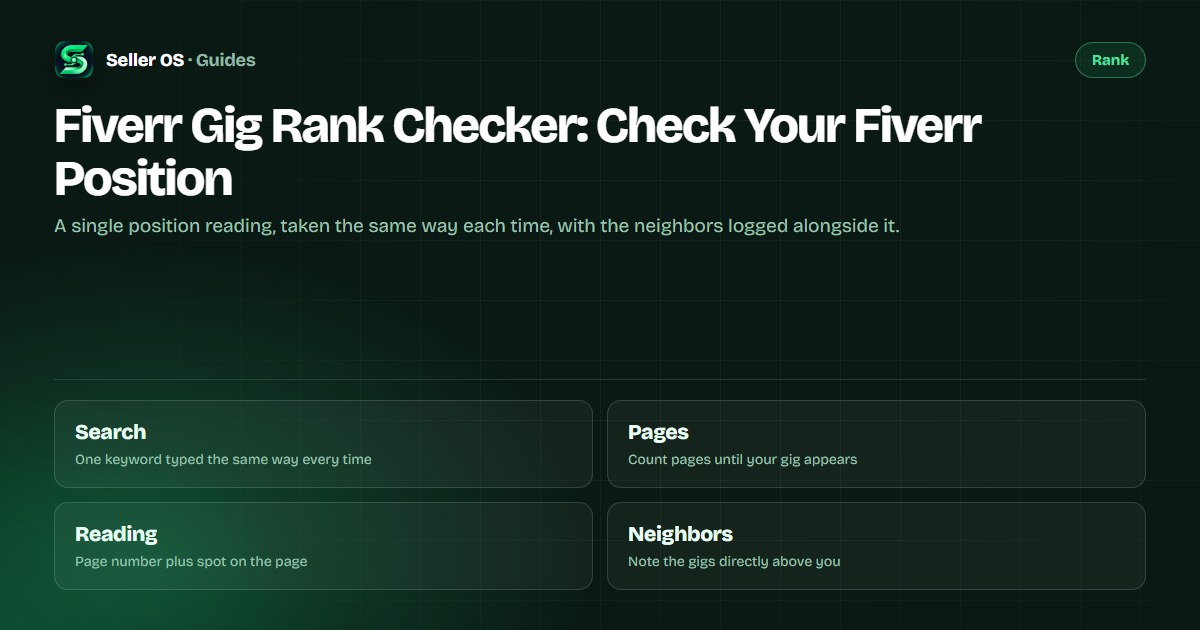
What a gig rank check can and cannot show
A manual check gives you two concrete things: whether your gig appears for a keyword, and roughly where. You can compare that with a previous reading and with the gigs around it. What it cannot give you is an official rank, because Fiverr does not show sellers a keyword position on the standard dashboard.
What you are sampling is a live results page built for one session. Your account history, your location, and how you have been browsing all shape the ordering. Treat the reading as an estimate taken under known conditions, and make those conditions repeatable so readings stay comparable over time.
- It can tell you: your gig shows on page 3 for this keyword, next to these two gigs.
- It cannot tell you: the exact rank Fiverr assigned your gig.
- It can tell you: a specific keyword got tougher since your last check.
- It cannot tell you: why Fiverr ordered the page the way it did.
How to check your gig position step by step
The check takes about five minutes per keyword. Work in a private window so your usual browsing does not reshape the page, search one keyword at a time, and scan the pages in order. Write things down as you go; memory is a poor log, and a reading you cannot compare is nearly worthless.
Open a private browser window
it keeps most of your browsing history out of the result page.
Search your exact keyword
type it the same way a buyer looking for that service would.
Scan pages in order
count the pages until your gig card appears.
Note page and position
for example, page 3, twelfth card on that page.
Log the date and the neighbors
the two gigs above yours become your reference points.
Why two checks can show different results
Run the same search twice, from two different sessions, and you can get two different orderings. Fiverr results are shaped by the browsing session, the location, and the device, so a friend in another country may see a page that looks nothing like yours. Both readings can be accurate samplings of two different pages.
Pagination is the other variable. A gig sitting on page 4 at one reading and page 3 at the next can reflect a real move, a small ordering shuffle, or a result set that simply changed size. Without a second reading taken the same way, you cannot tell which one it was, which is why the method matters as much as the number.
| Date | Where the gig appeared | Neighbors | How to read it |
|---|---|---|---|
| Mar 3 | page 3, card 12 | Seller A, Seller B | Starting point |
| Apr 3 | page 4, card 3 | Seller A gone, Seller C new | Page boundary moved, not a collapse |
| May 3 | page 3, card 9 | Seller A, Seller C | Recovered; one-month wobble |
How to read one result without fooling yourself
Ask three questions before you react. Did the gig appear at all? Did it move by more than a few cards? And did the gigs around it move too? If the whole page shuffled, the change probably was not about your gig. If only your gig moved, that is worth a closer look at the fields that carry your keyword.
The most useful log entry for an absent gig is honest language: not seen in five pages, dated. An absence recorded the same way three times is still a signal about relevance for that phrase, and it is far better than a guessed position that makes the next reading incomparable.
What Fiverr itself shows you instead
Fiverr's own per-gig statistics cover impressions, clicks, orders, cancellation rate, conversion rate, average delivery time, and orders in queue, and the help center states that statistics are displayed for the past 30 days by default. Those numbers describe performance on the searches buyers actually ran, which is a different view from a fixed keyword sample. Fiverr documents them in Managing your Gigs.
What the dashboard does not give you is a position for a keyword you chose. Keyword-level views, including Top Keywords and Keyword Research, are documented as Seller Plus tabs, web-only and limited to Standard and Premium members. So the manual check and the dashboard answer different questions, and neither one replaces the other.
Mistakes that make a rank check misleading
The first mistake is checking from a logged-in session stuffed with your own browsing, which fills the top of the page with gigs the platform thinks you like. The second is searching a slightly different wording each time; word order alone can change the result set. The third is treating one reading as permanent.
The fourth is comparing your reading with someone else's screenshot. Two sessions produce two different pages, so a friend's position and yours can both be accurate. Compare your readings only with your own, taken under the same conditions, and the log becomes evidence instead of trivia.
- Logged-in checks that mostly reflect your browsing history.
- Wording drift between checks on what is supposed to be one keyword.
- Screenshots from another country or device used as a benchmark.
- Reacting to a single reading instead of a pair of readings.
Where Seller OS helps
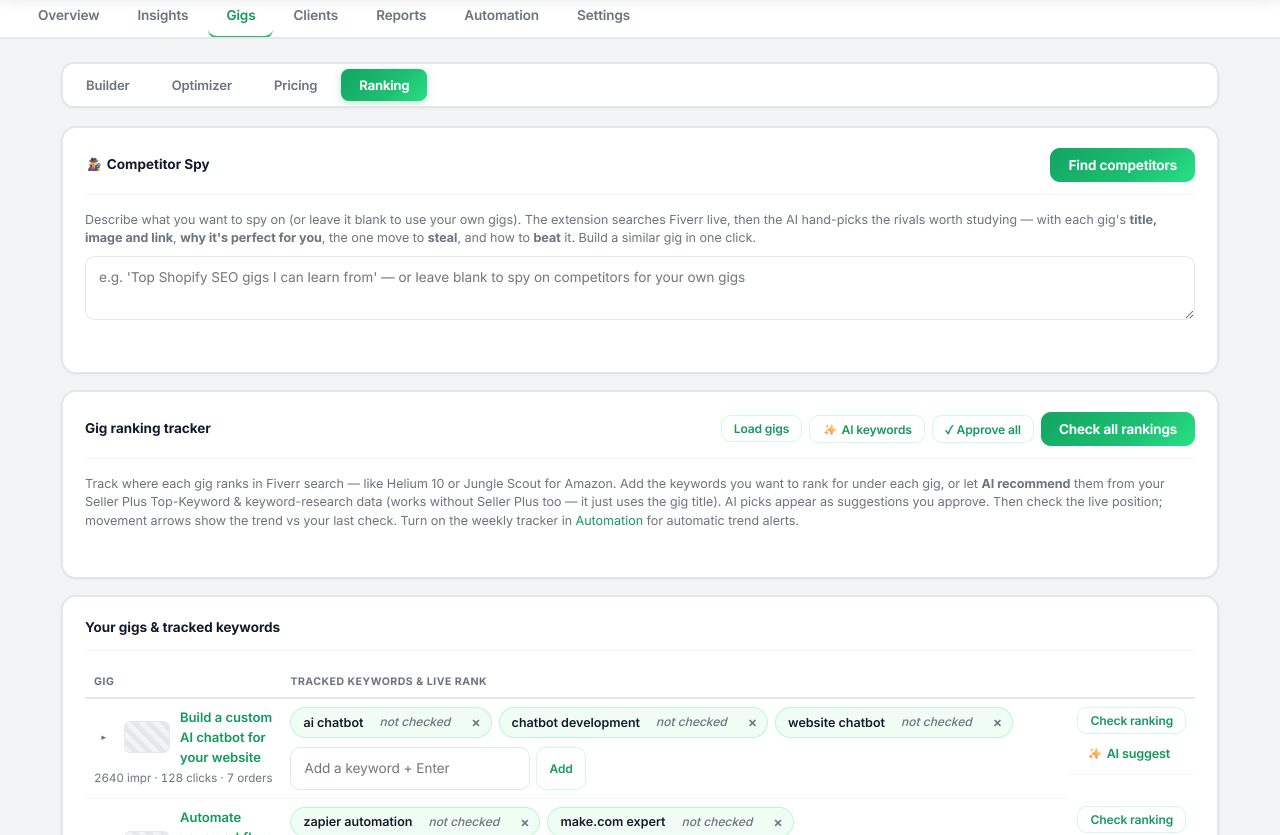
Seller OS records the check for you: add the keywords you care about, and the Keyword Rank tracker keeps a local history of sampled positions, movement, and the competitor gigs around yours. A reading becomes a trend line you do not have to reconstruct from notes.
The data stays in Chrome local storage and is not uploaded. The tracker samples and logs; it does not edit your gig, and it cannot promise a position, because no tool can guarantee one.
Fiverr Gig Rank Checker questions
How do I check my gig's rank on Fiverr?
Search your keyword in a private browser window, page through the results in order, and note the page and position where your gig appears. Record the date and the neighboring gigs. Repeat the same way next time. The reading is an estimate, because Fiverr personalizes results to the session, but consistent readings are comparable.
Why can't I find my gig in Fiverr search at all?
Log it as not seen in the number of pages you scanned rather than guessing a position. An absence can mean the phrase is too competitive, too generic, or poorly matched to your gig fields. Check that the keyword appears naturally in your title, positive keywords field, or description, then wait before rechecking.
Does Fiverr analytics show my gig's rank?
Not as a keyword position on the standard dashboard. Fiverr's per-gig statistics show impressions, clicks, orders, conversion rate, and related performance metrics for the past 30 days by default. Keyword-level views exist in the Seller Plus Top Keywords and Keyword Research tabs. A manual rank check is a different measurement.
Are online Fiverr rank checker tools accurate?
They sample the same public result pages you can open yourself, so treat their output the way you treat your own reading: an estimate shaped by location, session, and pagination. A tool saves time when it repeats the check on a schedule. No tool can show an official rank, because Fiverr does not publish one.
Check your position the same way every time.
Log one keyword today, repeat it next week, and compare the two readings before you change anything.