 Seller OS
Fiverr's new seller dashboard: what moved where
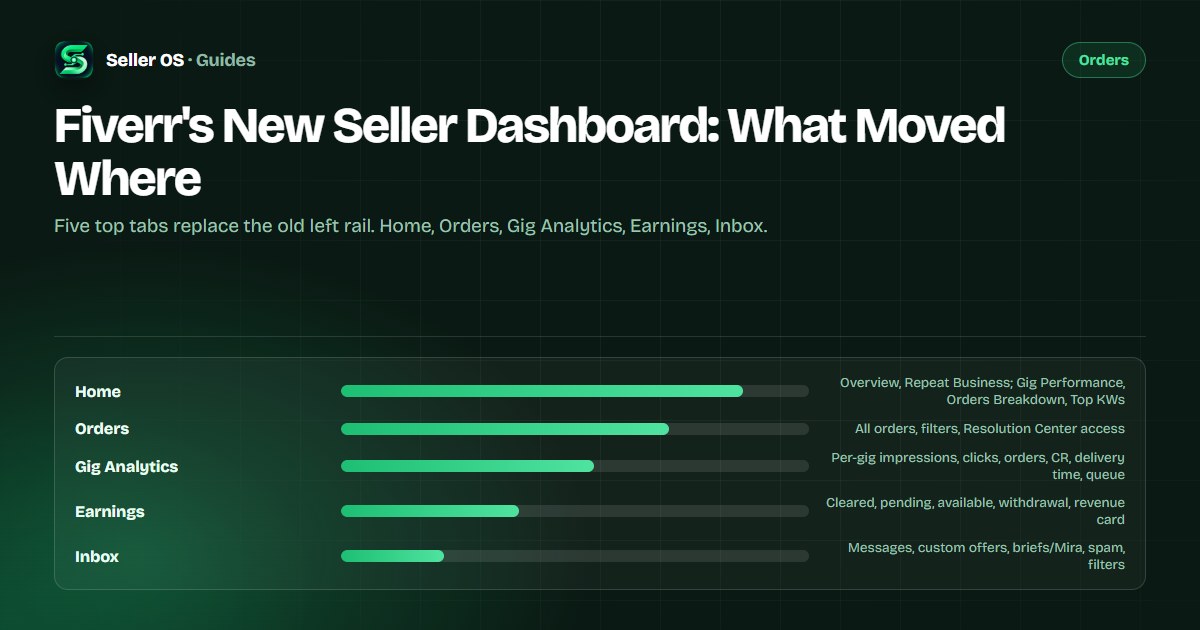
Fiverr's 2025–26 dashboard redesign consolidated the top navigation into Home, Orders, Gig Analytics, Earnings, and Inbox. Sellers who relied on the old left-rail menu or the legacy Analytics tabs now hunt for Gig Performance, Top Keywords, and the Sales timeline. The data did not disappear — it moved to new tabs, some gated by Seller Plus.
This guide maps the old locations to the new ones, explains what moved and why the change disoriented experienced sellers, and gives a one-week orientation routine. Fiverr's published dashboard and analytics articles name the tabs; the routine is practical advice.
Free plan available. Local-first data. Human review on every change.
The new tab map: what lives where
The top navigation now has five tabs. Home holds the account-level Overview (total earnings, average selling price, on-time delivery %, total orders, current-month earnings, cancellations breakdown, client-country map) and the Repeat Business tab. The four advanced tabs — Gig Performance, Orders Breakdown, Top Keywords, Keyword Research — are Seller Plus exclusive and live under Home. Orders is the order-management hub: all orders with status filters, the Resolution Center entry point, and the delivery/upload flow. Gig Analytics opens the per-gig statistics page (impressions, clicks, orders, cancellation rate, subscriptions, conversion rate, average delivery time, orders in queue, 30-day performance graph). Earnings shows cleared balance, pending clearance, available for withdrawal, withdrawal methods, and revenue card status. Inbox is the unified messaging center: buyer messages, custom offers, Mira job invitations, spam folder, and filter/search.
The legacy left-rail menu items (Analytics, Gigs, Earnings, Inbox, Settings) are gone. The Sales timeline graph (earned, cancelled, new orders over time) was removed from the current Analytics version per Fiverr's FAQ. Sellers who bookmarked deep links to the old Analytics sub-tabs will hit 404s or redirects.
| Old location | New location | Access |
|---|---|---|
| Analytics → Overview | Home → Overview | All sellers |
| Analytics → Repeat Business | Home → Repeat Business | All sellers |
| Analytics → Gig Performance | Home → Gig Performance | Seller Plus only |
| Analytics → Orders Breakdown | Home → Orders Breakdown | Seller Plus only |
| Analytics → Top Keywords | Home → Top Keywords | Seller Plus only |
| Analytics → Keyword Research | Home → Keyword Research | Seller Plus only |
| Gigs → Statistics (per gig) | Gig Analytics (click gig title) | All sellers |
| Earnings | Earnings tab | All sellers |
| Inbox | Inbox tab | All sellers |
Why sellers lost their bearings
Three changes compounded the disorientation. First, the navigation model shifted from a persistent left rail (always visible, spatial memory) to a top tab bar (context-dependent, requires click). Second, the advanced analytics tabs were gated behind Seller Plus, so non-subscribers lost visibility into Gig Performance, Orders Breakdown, Top Keywords, and Keyword Research overnight. Third, the Sales timeline graph — a daily habit for many — was removed without a direct replacement in the standard view.
Fiverr's help center article 'Viewing your sales analytics' confirms the last 30 days are displayed by default and the date-range dropdown filters the data. The article also explicitly notes the Sales section is no longer available in the current version. Sellers who used that graph to correlate marketing efforts with order spikes now have no equivalent in the standard tier.
One-week orientation routine
Spend 10 minutes a day for five days to rebuild muscle memory. Day 1: Open Home → Overview. Note the six metrics (earnings, avg price, on-time %, total orders, current month, cancellations). Click the date dropdown; set to 90 days. Day 2: Open Home → Repeat Business. Note your repeat business score, number of repeat clients, and the subcategory comparison if visible. Day 3: Open Orders. Use the status filters (Active, Delivered, Completed, Canceled). Open one active order; find the Resolution Center button. Day 4: Open Gig Analytics. Click each of your top three gigs. Note impressions, clicks, orders, CR, avg delivery time, queue. Switch the graph between Impressions, Clicks, Orders, Conversion. Day 5: Open Earnings. Verify cleared balance, pending clearance, available for withdrawal. Confirm your withdrawal method is linked.
If you have Seller Plus, add two more days: Day 6: Home → Gig Performance. Compare your CTR and CR to subcategory averages. Day 7: Home → Top Keywords. Filter by your main gig. Note the top 5 keywords, their impressions, clicks, orders, earnings. This routine covers every surface you need for daily operations.
Day 1: Home → Overview, set date range to 90 days.
Day 2: Home → Repeat Business, note score and repeat clients.
Day 3: Orders tab, test status filters, open Resolution Center on one order.
Day 4: Gig Analytics, click top 3 gigs, cycle graph views.
Day 5: Earnings tab, verify cleared/pending/available, withdrawal method.
Day 6 (Seller Plus): Home → Gig Performance, compare CTR/CR to subcategory.
Day 7 (Seller Plus): Home → Top Keywords, filter by main gig, note top 5.
Mobile app gaps to know
Fiverr's help center states that Gig statistics are not available on the Fiverr app; use a desktop browser to view them. The mobile app's My Gigs section shows Gig statistics for the last 7 days only: impressions, clicks, views, and conversion (orders from clicks after views). The definitions differ from desktop: desktop conversion rate = orders ÷ impressions; app conversion = orders from clicks after views. The advanced analytics tabs (Gig Performance, Orders Breakdown, Top Keywords, Keyword Research) are web-only per the Seller Plus article.
If you manage primarily from mobile, bookmark the desktop URLs for Home/Overview and Gig Analytics. The Orders and Inbox tabs work fully on mobile. Earnings withdrawal initiation works on mobile. The gap is per-gig statistics and advanced analytics.
- Per-gig statistics: desktop only (app shows 7-day summary with different definitions).
- Advanced analytics tabs: web-only, Seller Plus required.
- Sales timeline graph: removed, no mobile equivalent.
- Orders, Inbox, Earnings withdrawal: full mobile support.
Customizing the view for your workflow
The new dashboard does not support custom pinning or widget rearrangement. However, you can set your default date range in Home → Overview (it persists per session). Use browser bookmarks for the two or three deep links you hit daily — e.g., https://www.fiverr.com/analytics/overview?range=90d and https://www.fiverr.com/gigs/analytics?gig_id=YOUR_TOP_GIG. The Inbox supports filters (Unread, Custom Offers, Mira, Spam) and search by buyer name or order ID; save a filtered URL as a bookmark.
A common mistake sellers make is keeping the old left-rail bookmarks. Those URLs now redirect to the Home tab or return 404. Update your bookmarks after the first week; the new URLs are stable.
What may differ by account
Fiverr rolls out UI changes gradually. The exact tab labels, the presence of the Repeat Business tab for non-Seller-Plus accounts, and the visibility of the Mira/Briefs entry in Inbox can vary by account type, region, and rollout wave. The help center articles describe the current design as of the article date; your screen may show slight variations. Treat this guide as a map of the intended structure, not a pixel-perfect screenshot.
If a tab described here is missing, check your account level and Seller Plus status. If you are Level 1+ without Seller Plus, you should see Home (Overview, Repeat Business), Orders, Gig Analytics, Earnings, Inbox. If you are New Seller, the same five tabs appear but Gig Performance, Orders Breakdown, Top Keywords, Keyword Research remain gated.
Where Seller OS helps
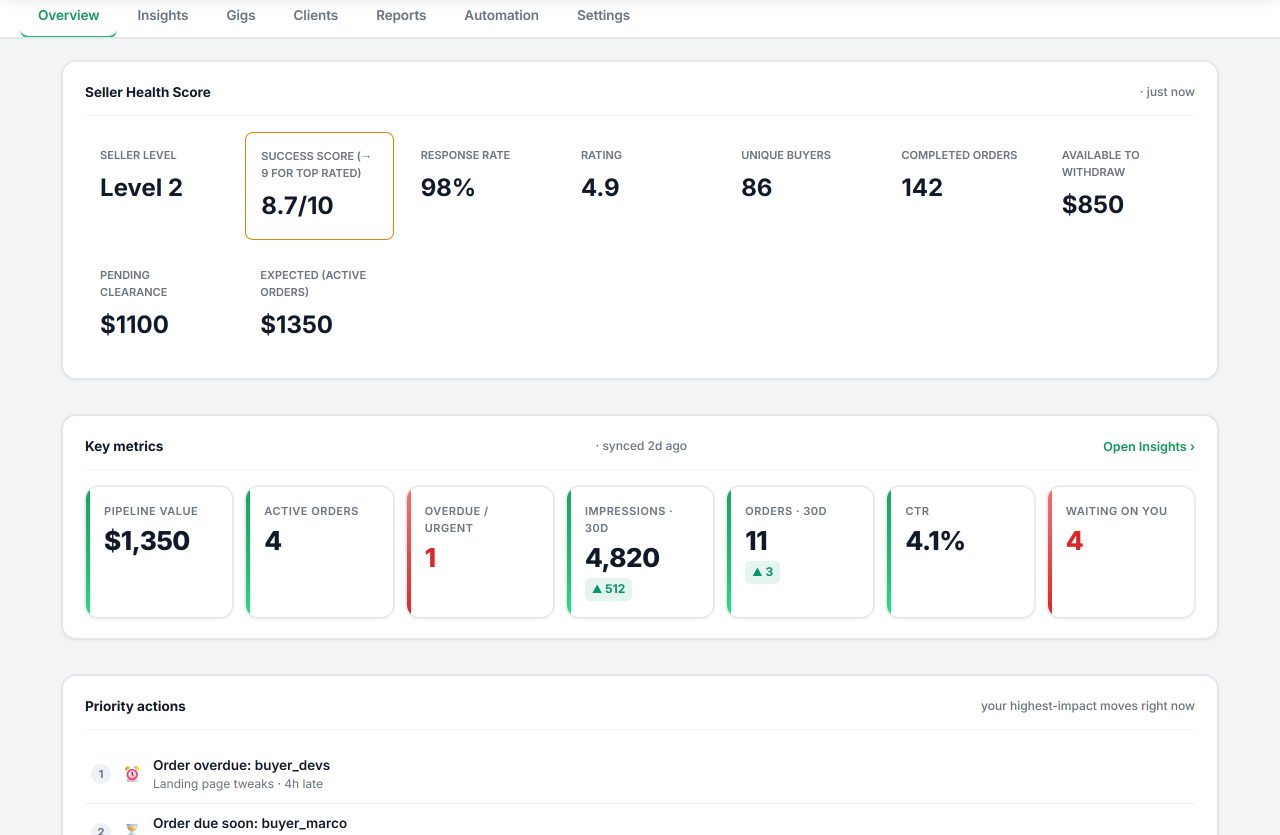
Seller OS keyword research help and rank tracking (tracked keywords, position history, movement, competitor positions) fill the gap left by the gated Top Keywords and Keyword Research tabs for non-Seller-Plus sellers. The gig optimizer reviews live gig conversion signals against the gig's own performance data from Gig Analytics. The reports view and action queue consolidate the Overview metrics, repeat business signals, and gig-level stats into one keyboard-friendly workspace so you do not need to click through five tabs daily.
It cannot restore the removed Sales timeline graph, cannot unlock Seller Plus analytics tabs, and cannot change Fiverr's UI. The extension reads what Fiverr shows and surfaces it in a single view.
Fiverr's New Seller Dashboard questions
Where did the Sales timeline graph go?
Fiverr's help center FAQ states: 'The Sales section (timeline graph showing earned, cancelled, and new order data) is no longer available in the current version of the Analytics page.' There is no standard-tier replacement.
Can I see Gig Performance, Top Keywords, or Keyword Research without Seller Plus?
No. Fiverr publishes that the Gig Performance, Orders Breakdown, Top Keywords, and Keyword Research tabs are available exclusively to Seller Plus Standard and Premium members. Kickstart and non-subscribers do not have access.
Why are my per-gig statistics different on mobile vs desktop?
The mobile app shows a 7-day window with different definitions: conversion = orders from clicks after views. Desktop Gig Analytics uses a 30-day default with conversion rate = orders ÷ impressions. Fiverr's help center notes both and states desktop is required for full data.
Did the old Analytics deep links change?
Yes. The left-rail menu was replaced by top tabs. Old deep links to Analytics sub-tabs redirect or 404. Update your bookmarks to the new Home/Orders/Gig Analytics/Earnings/Inbox URLs after the orientation week.
Ten minutes a day for one week
Walk the five tabs, note the metric locations, update your bookmarks. Muscle memory returns fast.