 Seller OS
Fiverr order extras missing: where they went
A buyer places an order but the fast-delivery extra or the source-file extra you built into the gig is nowhere on the order page. The most common causes: the gig edit has not propagated to the live version, the extra was never saved, the buyer chose a package that does not include that extra, the mobile view hides it, or the order state blocks additions.
This guide walks the diagnosis in order of likelihood, shows the safe recovery (a custom offer for the missing extra), and explains when to edit the gig versus when to leave it alone. Fiverr's published extras mechanics define what is possible; the diagnosis order is practical.
Free plan available. Local-first data. Human review on every change.
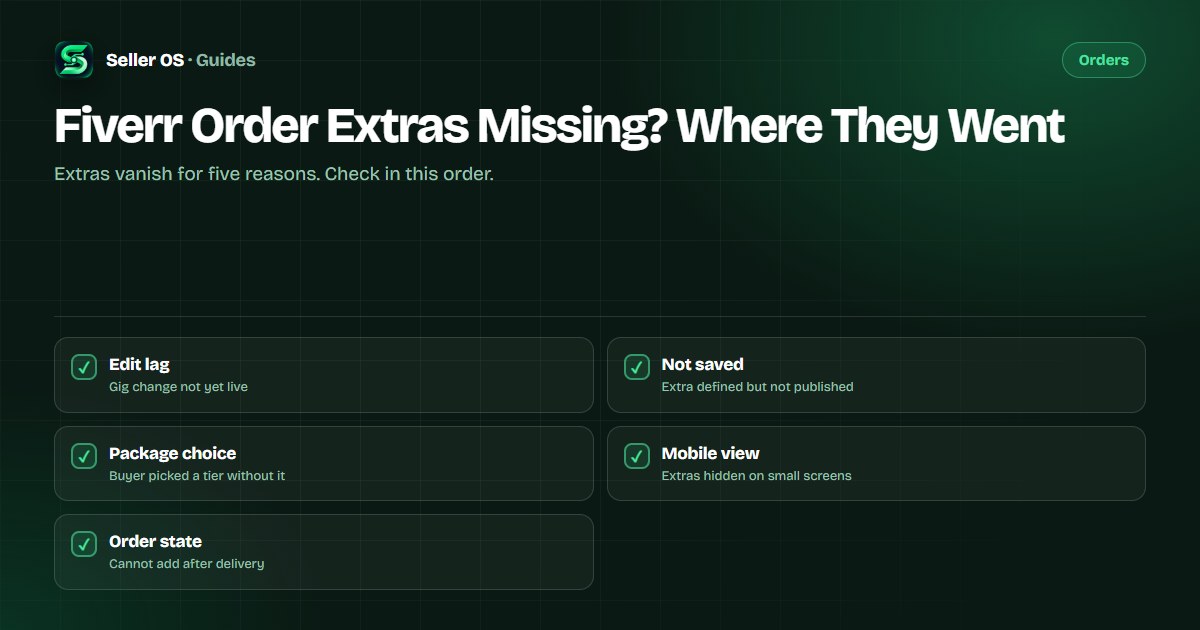
1. Gig-edit lag: the change is not live yet
When you add or modify an extra in the gig editor, Fiverr's system needs time to propagate the change to the live marketplace. The Managing Your Gigs article notes that significant edits such as changes to pricing may trigger a review during which the gig may not be visible. Even without a formal review, there is a propagation delay — typically minutes, occasionally longer — before the new extra appears on the order page for new buyers.
If the buyer ordered within an hour of your save, they may have hit the cached version. Ask them to refresh the order page or open it in an incognito window. If the extra appears there, the lag is resolved. Do not edit the gig again while the first change is propagating; each edit resets the timer.
- Wait 15–30 minutes after saving the gig.
- Buyer refreshes order page or uses incognito.
- Do not re-edit while propagation is pending.
- If still missing after an hour, check the next cause.
2. The extra was defined but never saved
A common mistake sellers make is configuring an extra in the editor — setting the name, price, delivery time — but navigating away before clicking Save. The editor may show the extra in the preview, but the live gig does not have it. Open the gig editor again, go to the Extras section, and confirm the extra appears in the saved list with a price and delivery time.
Fiverr's gig extras guide describes three types: fast delivery, revisions, and additional extras. Fast delivery and revisions are available across all categories. Source-file extras are available in specific categories only. If you added a source-file extra in a category that does not support it, the save may have silently dropped it. Check the category eligibility before assuming it saved.
Open Gig Editor → Extras tab.
Confirm the extra appears in the saved list with price and delivery days.
If missing, re-add and click Save.
Wait for propagation, then test with a fresh order link.
3. Buyer chose a package that does not include the extra
Fiverr's package system lets you define different extras per package. If you attached the fast-delivery extra only to Standard and Premium, a buyer who selects Basic will not see it on the order page. The order page shows only the extras attached to the chosen package. This is not a bug — it is the intended behavior.
Illustrative example: Your Basic package has no extras. Standard includes '24-hour delivery' for $20. Premium includes '24-hour delivery' and 'Source files' for $40. A buyer orders Basic. The order page correctly shows zero extras. The buyer cannot add Standard's extras to a Basic order.
| Package | Extras attached | Buyer sees on order page |
|---|---|---|
| Basic | None | No extras |
| Standard | Fast delivery | Fast delivery only |
| Premium | Fast delivery + Source files | Both extras |
4. Mobile display hides the extras section
On the Fiverr mobile app and mobile web, the order page sometimes collapses the extras section or renders it below the fold where buyers miss it. The buyer may think extras are unavailable when they are simply not visible. Ask the buyer to check on desktop or to tap 'Show more' / 'View all extras' on the mobile order screen.
This is a display issue, not a data issue. The extras exist on the order; the buyer just cannot see them. If the buyer is on mobile and you need them to purchase an extra, send a direct link to the order page with a note to check desktop, or use the custom-offer recovery below which works on any device.
5. Order state blocks adding extras
Fiverr allows extras to be added only while the order is in Requirements Needed or In Progress status. Once you deliver, the order moves to Delivered and the buyer can no longer purchase extras on that order. If the buyer realizes they needed the source-file extra after you delivered, the order page will not show it — the window has closed.
Similarly, if the order is in Dispute, Very Late, or a Resolution Center cancellation flow, the extras UI is disabled. The only path to add the extra at that point is a custom offer for the missing item, which creates a separate order line.
- Requirements Needed / In Progress: extras purchasable.
- Delivered / In Revision / Completed: extras locked.
- Dispute / Very Late / Cancelling: extras disabled.
- After delivery: only custom-offer recovery works.
Safe recovery: custom offer for the missing extra
When the extra is genuinely missing and the buyer still wants it, send a custom offer titled 'Add-on to order #XXXX — [Extra Name]' priced at the extra's amount, with 1-day delivery and 0 revisions. Fiverr's custom offer limits ($5 minimum, $20,000 maximum, 1–90 days delivery) accommodate any extra price. The custom offer becomes a separate order; you deliver the extra work alongside or after the main delivery.
This works in every scenario above: edit lag (buyer gets the extra now), not saved (you define it in the custom offer), package mismatch (buyer pays the difference), mobile view (custom offer link works everywhere), and post-delivery (new order line, no status conflict). It also leaves a clean paper trail: the custom offer description references the original order number and the specific extra.
When to edit the gig versus when to stop
Edit the gig if the extra is missing for *future* buyers — the edit lag or unsaved extra affects the next order. Do not edit the gig to fix a single past order; the propagation delay means the current buyer still will not see it, and you risk introducing a review trigger that hides the gig from search. Use the custom-offer recovery for the current order, then verify the gig shows the extra correctly for the next buyer.
If you find yourself sending custom-offer top-ups for the same extra on multiple orders, that is the signal to edit the gig: either the extra was not saved, or it is attached to the wrong packages, or the category does not support that extra type. Fix the root cause once, then the custom-offer workarounds stop.
Where Seller OS helps
Seller OS gig optimizer reviews your live gig's extras against your package structure and flags when an extra is attached to only one tier or when a category-ineligible extra was dropped. The inbox assistant drafts the custom-offer add-on message with the correct title, price, and original-order reference. Local client records keep the extra-recovery history attached to the buyer so you can see the pattern if it repeats.
It cannot force the gig editor to propagate faster, cannot make a category support an unsupported extra type, and cannot add extras to an already-delivered order. The custom offer send remains yours.
Fiverr Order Extras Missing? Where They Went questions
Can a buyer add an extra after I deliver?
No. Fiverr allows extras to be purchased only while the order is in Requirements Needed or In Progress. After delivery, the order status changes to Delivered and the extras UI is disabled. Use a custom offer instead.
Why does my source-file extra not appear even though I saved it?
Source-file extras are available only in specific categories. If your gig's category does not support source files, the save may silently drop that extra. Check Fiverr's category eligibility or switch to an additional-extra type that your category allows.
The buyer says they cannot see the extra on mobile. Is it really there?
Yes, likely a display collapse. Ask the buyer to check on desktop or tap 'Show more' on the mobile order page. If they still cannot see it, send a custom offer link — custom offers render correctly on mobile.
Should I edit the gig to add the extra for this buyer?
No. The edit propagation delay means the current buyer still will not see it in time. Send a custom offer for this order, then verify the gig shows the extra correctly for the next buyer.
Diagnose in order, recover with a custom offer
Check edit lag, save status, package attachment, mobile view, and order state — then send the add-on custom offer.